Processes – Additional Features
This article explains how to manage an active or completed process in the Internet-of-Crops® platform, including stopping, exporting, sharing, and viewing process data.
1. Process Actions
When you open a process, the platform provides several actions to help you manage and share data:
-
Stop Process
-
Export Data
-
Share Process
-
Delete Process
-
Graph Data

2. Action Descriptions
2.1 Stop Process
Use Stop to end data collection for the process.
-
Once a process is stopped, it cannot be restarted.
-
No new readings will be added to the graphs.
-
Stopping a process is recommended when a fumigation, aeration session, or other monitoring activity has fully concluded.
2.2 Export Data
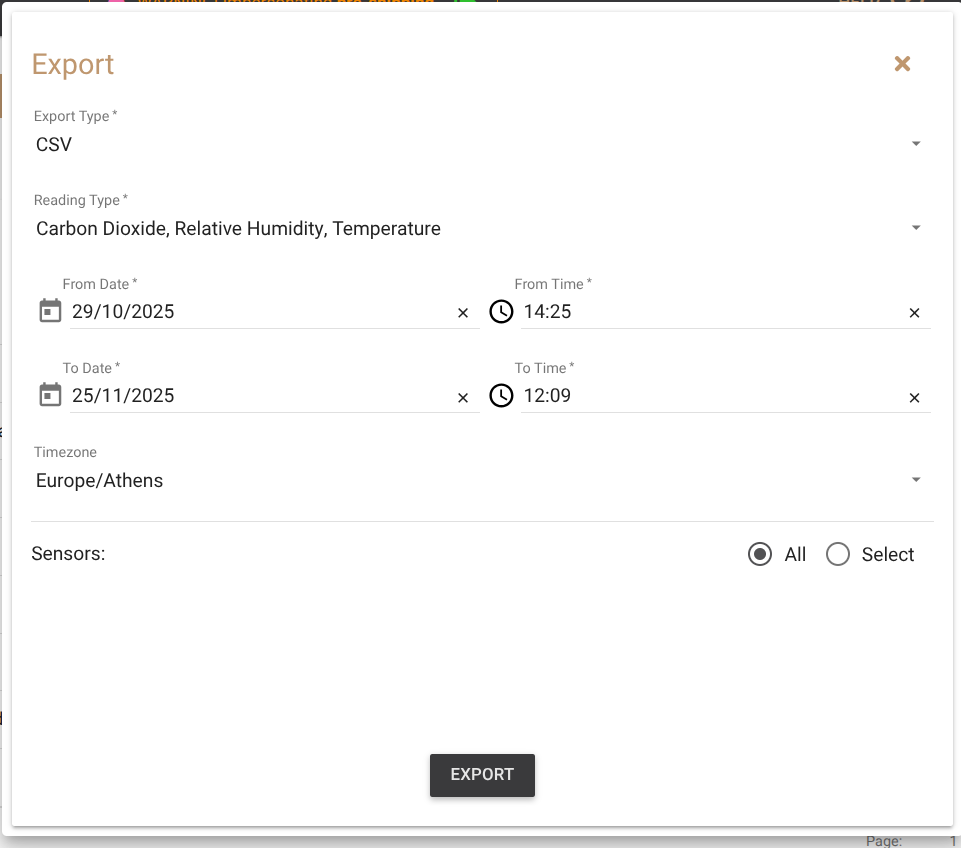
Use Export to download sensor data for external analysis.
In the export window, you can select:
-
Data types (for example, temperature or phosphine concentration)
-
Specific sensors
-
Time range for the export
Available export formats:
-
CSV — For spreadsheet or analysis tools
-
JSON — For integration with third-party systems
2.3 Share Process
Use Share to provide read-only access to a process.
When sharing a process:
-
Set a password (required).
-
Optionally set an expiration date and time.
-
Click Share to generate the link.
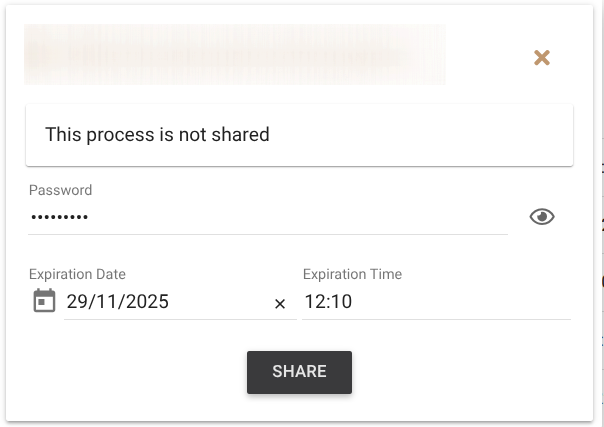
After confirming, the platform generates a secure link that you can share with colleagues or clients.
Recipients of the shared link:
-
Are redirected to the Internet-of-Crops® platform
-
Must enter the password
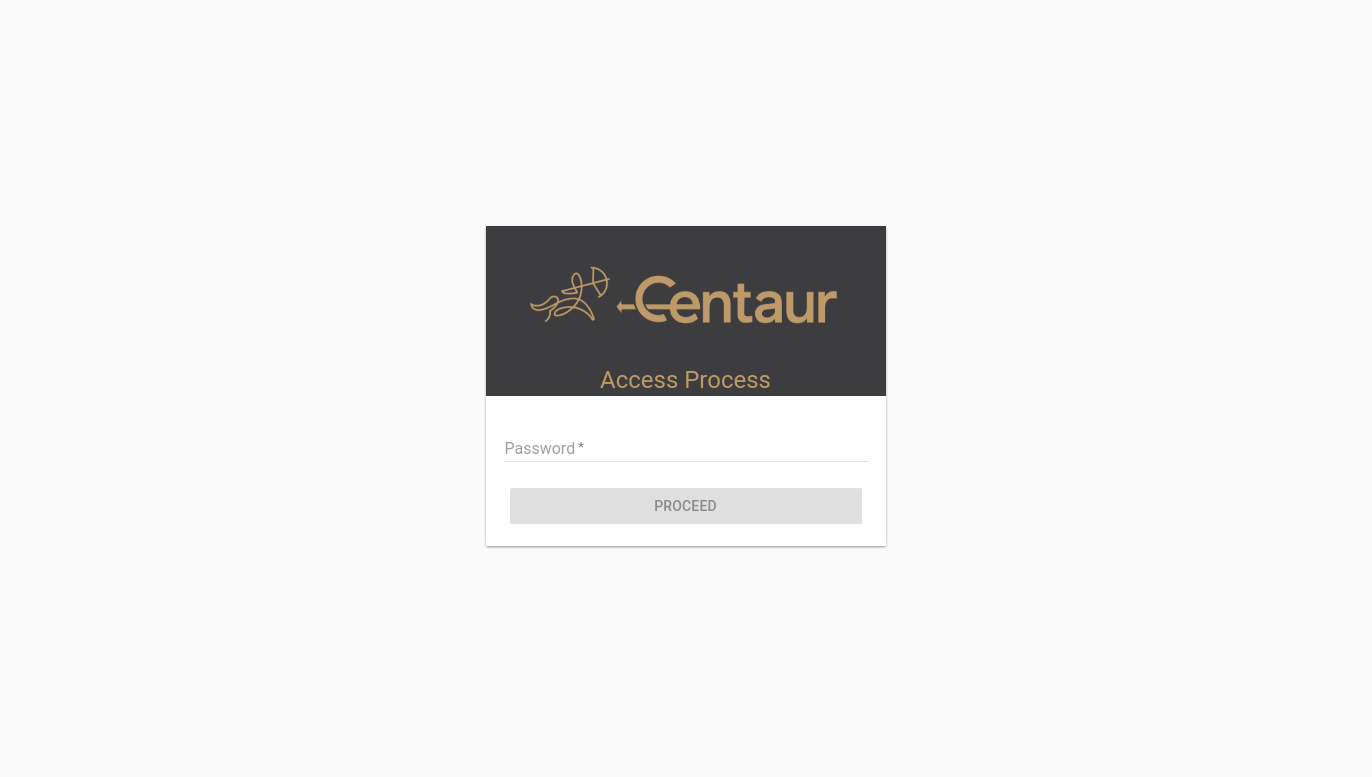
-
Can view the process in read-only mode
Read-only users cannot stop the process, delete it, or modify any settings.
This is useful when collaborating with colleagues or clients during an active fumigation or monitoring session.
2.4 Delete Process
Use Delete to permanently remove a process from the platform.
2.5 Graph Data
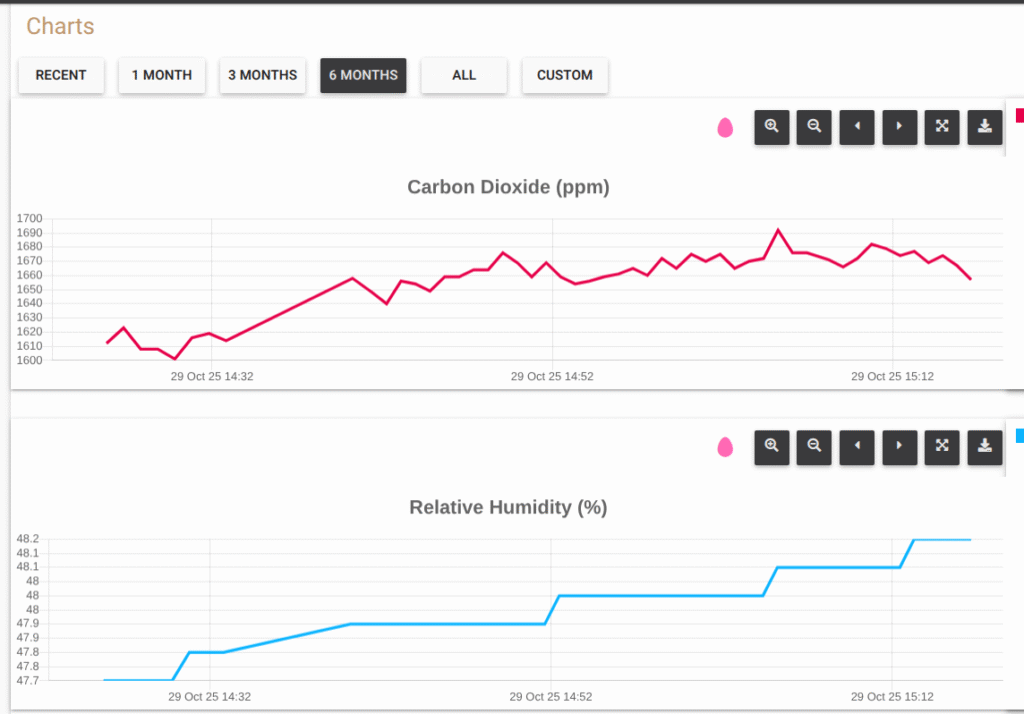
Graph Data opens the visualization tools for examining logged measurements.
3. Additional Notes
-
A process can still be exported or shared after it has been stopped.
-
Shared links allow secure viewing without risk of accidental changes.
-
Only authorized users with platform access can modify a process.
If you need further assistance, contact Centaur Support at support@centaur.ag.
If you have any questions or need further assistance, please contact our support team at support@centaur.ag. We’re here to help!