Working with Notifications
This article explains how to view, filter, and manage notifications in the Centaur® Internet-of-Crops® platform.
1. Accessing Notifications
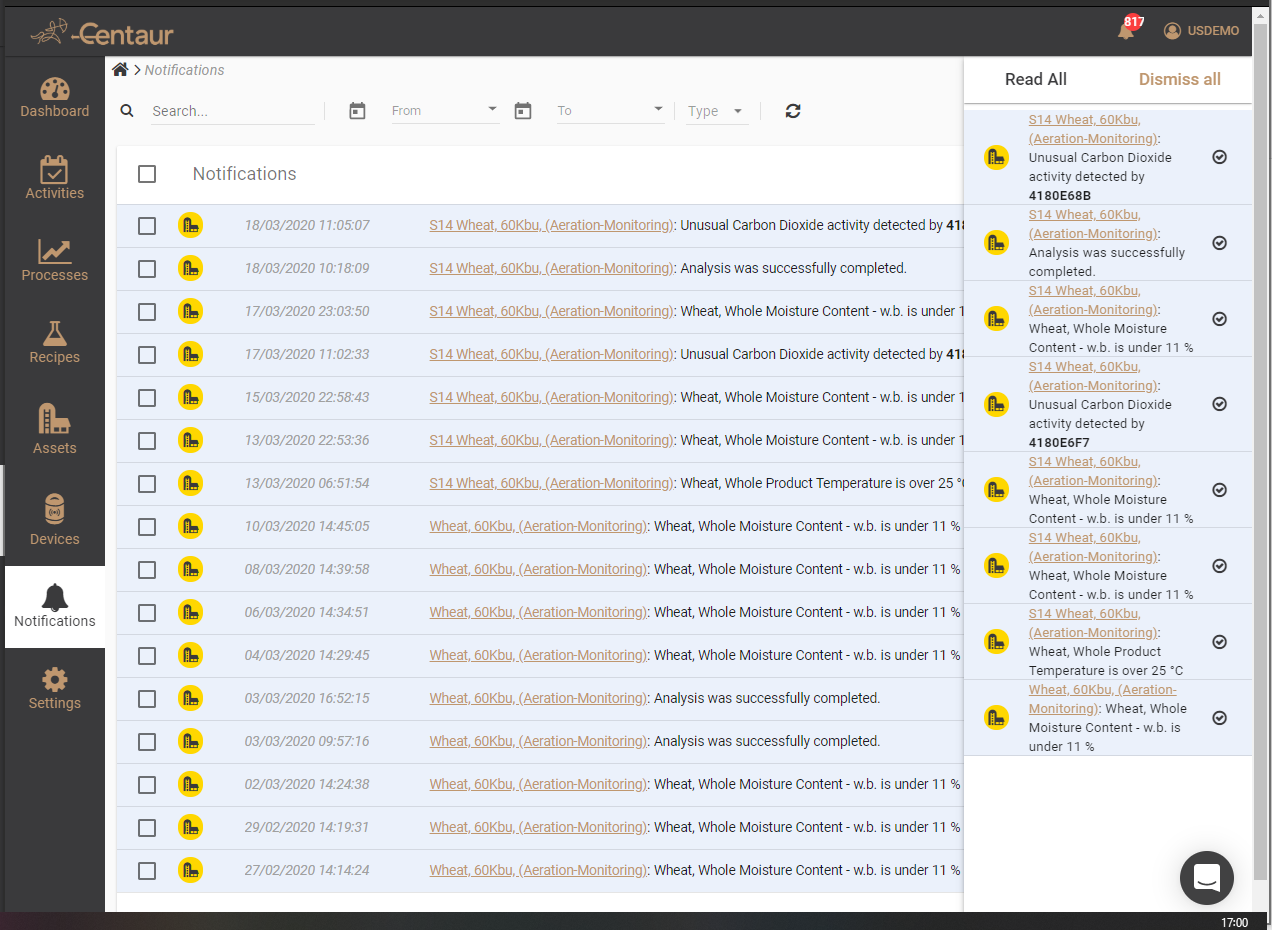
You can access notifications in two ways:
-
Notifications tab
Select the Notifications tab from the left-hand sidebar to open the full notifications list. -
Notification bell
Select the bell icon in the top-right corner of the platform to view your most recent notifications.
Selecting Read All from the bell menu redirects you to the Notifications tab.
 2. Viewing and Filtering Notifications
The Notifications tab displays all notifications associated with your account.
-
Use the filters at the top of the page to search and narrow notifications based on available criteria.
-
Notifications are listed chronologically, with the most recent appearing first.
3. Managing Notifications
You can manage notifications directly from the Notifications tab:
-
Dismiss notifications to clear them from active view while retaining a record.
-
Delete all notifications to permanently remove them.
These actions are available via the links in the upper-right corner of the Notifications page.
This completes the overview of working with notifications in the Centaur® Internet-of-Crops® platform.