This article explains how to view, manage, and edit assets in the Internet-of-Crops® platform.
1. Viewing Assets
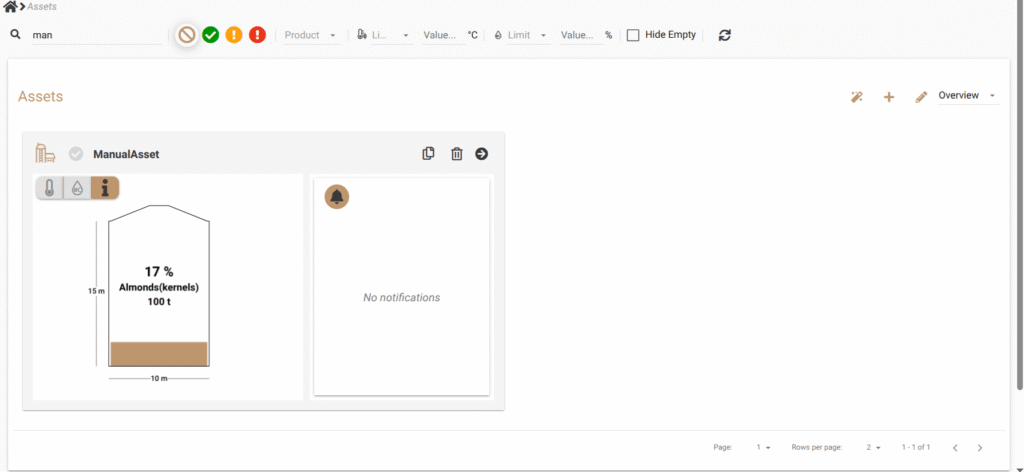
The Assets tab displays all assets that have already been created in your deployment.
If you haven’t created one yet you can do so by following these instructions.
Each asset appears as a card showing its name and status.
A pencil icon in the top-right corner of the page enables asset management actions.
Deleting an Asset
-
Select the pencil icon in the top-right corner.
-
A trash can icon appears on each asset card.
-
Select the trash can icon to delete the asset.
2. Opening and Managing an Asset
Selecting an asset card opens the Asset Overview page.
Here you can view all active Processes, Treatment Plans, and Quality Controls associated with the asset.

Creating New Activities
You can create a new activity directly from the Asset Overview page:
-
Navigate to the desired section: Processes, Treatment Plans, or Quality Controls.
-
Select the plus icon to create a new activity in that category.
If you need help with these workflows, refer to the corresponding articles in the How To collection.
Editing an Asset
Select the pencil icon on the Asset Overview page to edit asset details such as name, description, or metadata.
3. Asset Layout and Child Assets
Editing the Layout
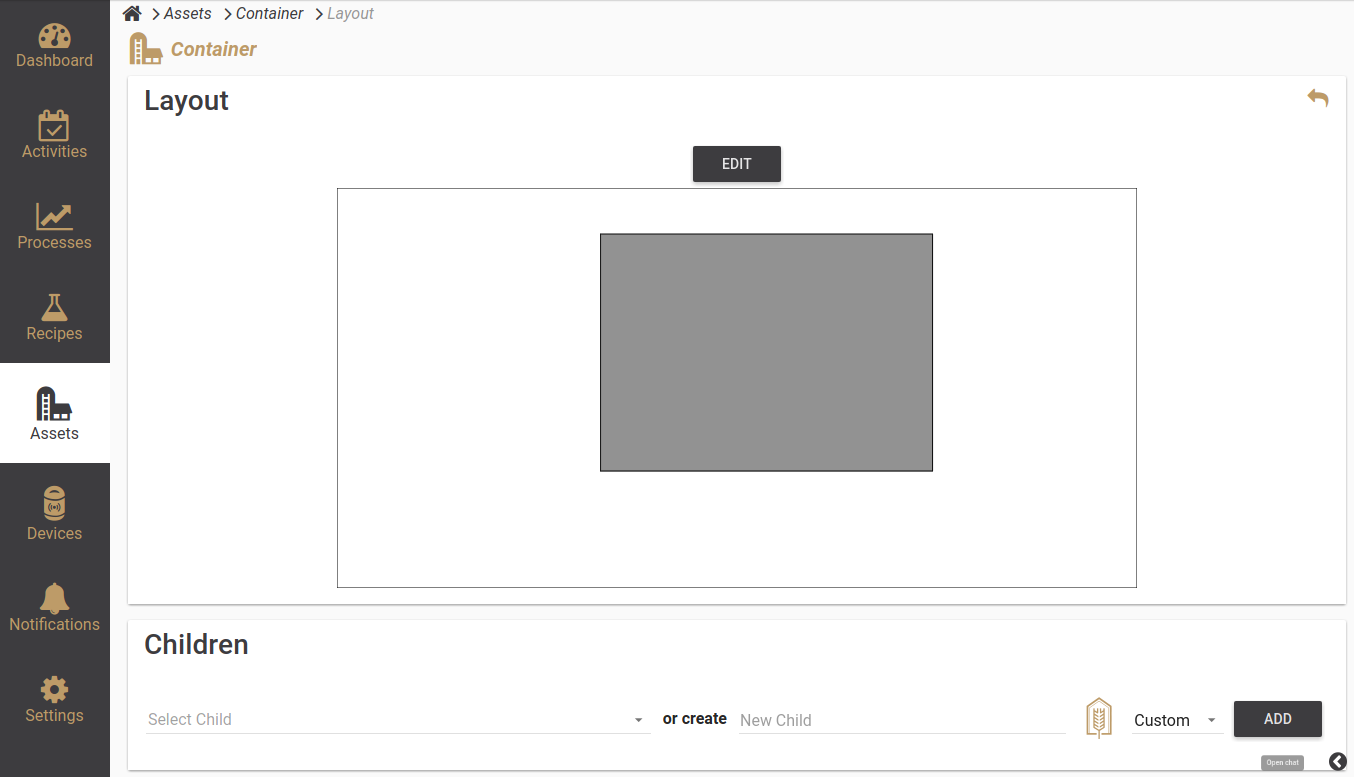
Selecting the layout icon (pencil and box symbol) opens the Layout Editor.
In this page you can draw and save the physical layout of the asset.
Creating Child Assets
Below the Layout section, you can create child assets—for example, a room inside a silo, a chamber inside a warehouse, or a compartment inside a container.
Child assets will be linked to the parent asset and appear in the hierarchy.
4. Additional Notes
-
Layout drawings are optional but recommended for complex storage structures.
-
Deleting an asset also removes its associated Processes, Treatment Plans, and Quality Controls; ensure that no critical operations are active.
-
For setup and configuration details, see the Platform Setup and Sensor Discovery Guide.