How to create a new monitoring or fumigation Process
This article will show how to create processes in the Centaur Cloud Platform, select your sensors, and begin monitoring live data from your network.
1. Creating a New Process
A process is a way to create charts from one or more sensors with a specific start date and time.
- Go to the Processes tab:
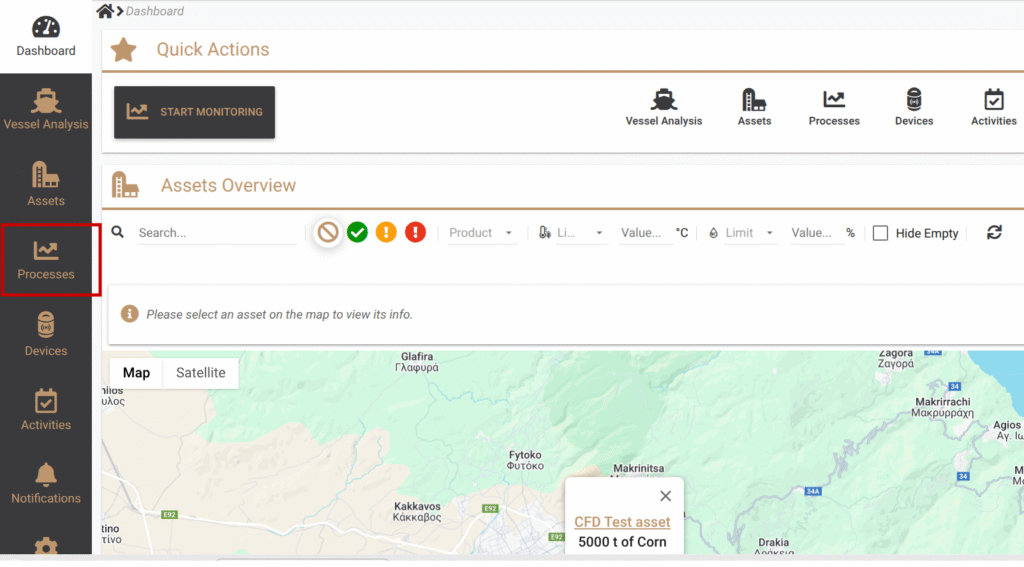
- Click the plus sign (+) located at the right top corner of the page:
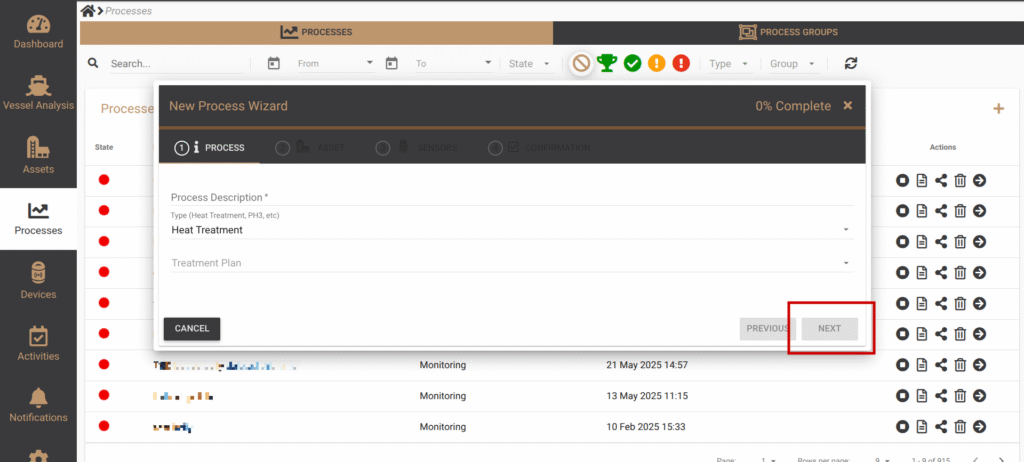
- Select the Process Type. Please note that Heat and Phosphine Treatment processes also let you choose a template treatment plan, combining sensor readings with pest treatment analytics.
- Press “Next” button to select an asset:
 If your asset is not created yet, you can quickly create an asset name by clicking on “+” sign: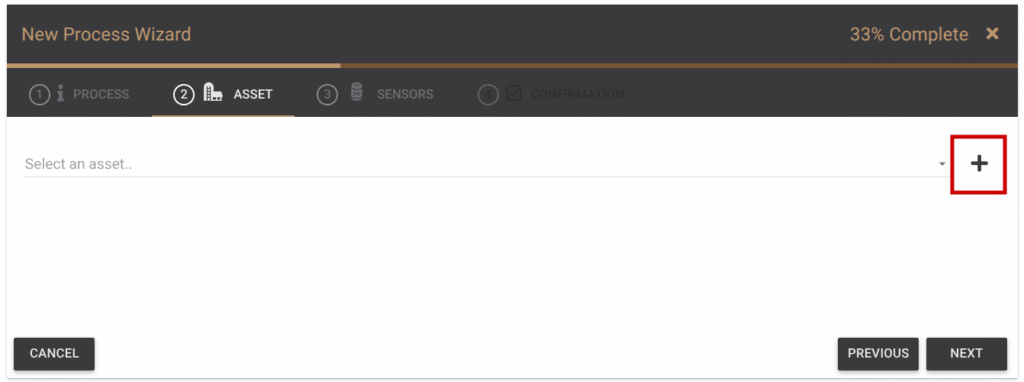
- Press “Next” to select the sensors from which data will be recorded. Note: if your sensor is associated with the asset you selected on step 2, it will be automatically selected.
- Press next to see the overview of the process you are about to initiate and click on “Start” button to create the new process.
2. Monitoring an Ongoing Process
Pressing “Predict” button displays the simulated average and worst expected concentrations combined with actual sensor readings.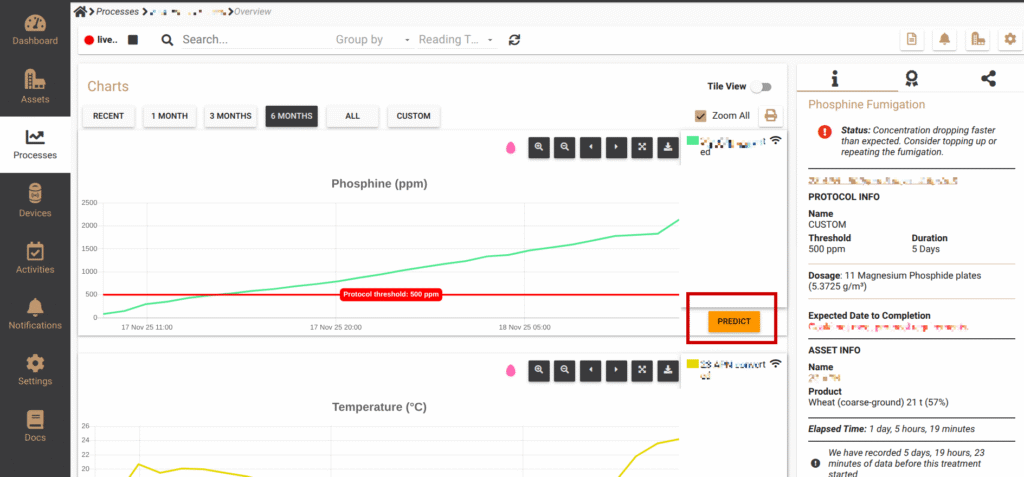
Information like the current status of the pest treatment, the selected fumigation protocol, the dosage, the expected date to completion and the current weather conditions in the area are displayed on the right.
3. Process Records and Sharing
3.1 Requesting a Record
You can request a digital fumigation certificate by clicking on “Request Record”:
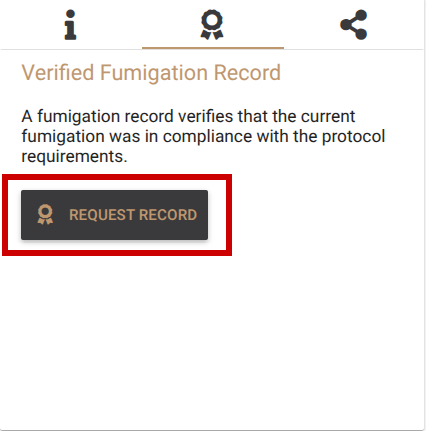
You can only request it when the process is completed.
3.2 Sharing a Process
You can share your process by creating a password-protected “read-only” link. It is possible to set an expiration date and time too:
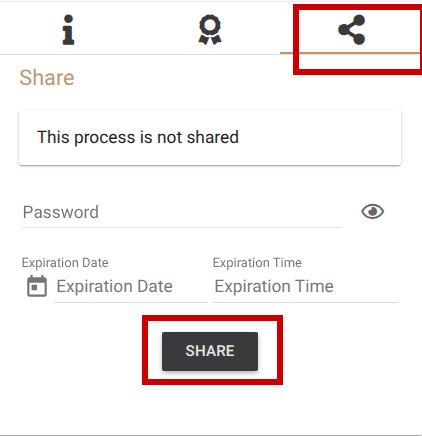
Click “Unshare” to deactivate the share link at any time.
Summary
You have now:
-
Created a new process,
-
Selected the asset and sensors to monitor,
-
Started the process and viewed live sensor data,
-
Accessed predictions, records, and sharing options for the process.
Congratulations!!! You have successfully created a Process.