How to use Manual Aeration Mode
In this article, we’ll go over how to manually turn on or off aeration fans on the Centaur platform. This guide covers the Manual working mode, which provides direct control of the fans, bypassing any automatic or rule-based logic.
Use this mode when:
- You need to manually start or stop fans regardless of system logic.
- You want to test fan operation or wiring.
- You’re performing on-site maintenance or verification of airflow.
Before activating Manual Mode
Before manually controlling any fan, make sure that:
- Automatic Mode (Recommendations) is turned OFF in the Overview panel.
- Rules Mode is also turned OFF to prevent automated logic from overriding your commands.
How to activate fans manually
After logging in to your account, go to the Devices view located in the menu bar on the left side of the screen.

If you have multiple gateways, identify where the fan you want to manage is located, and click on that gateway.
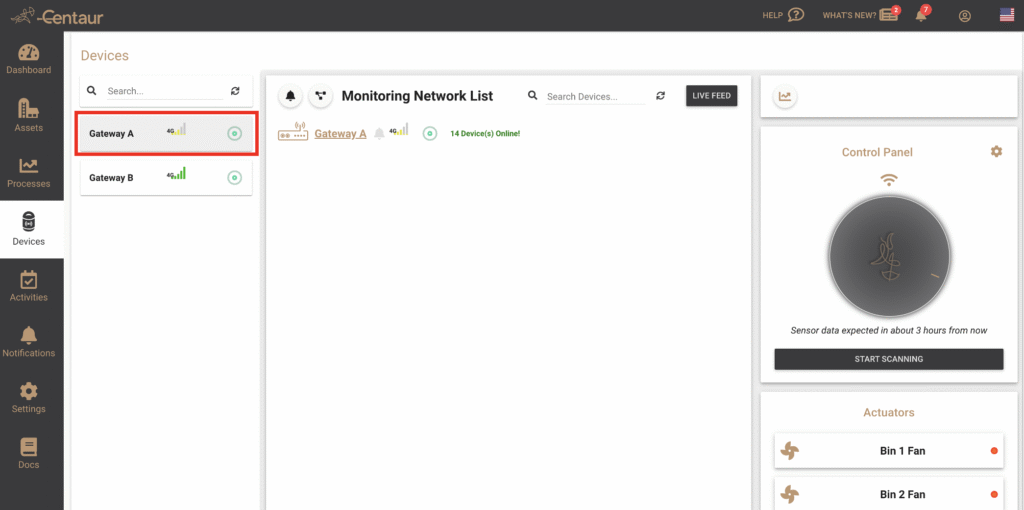
Each individual fan or fan bank will appear under the Actuators panel.
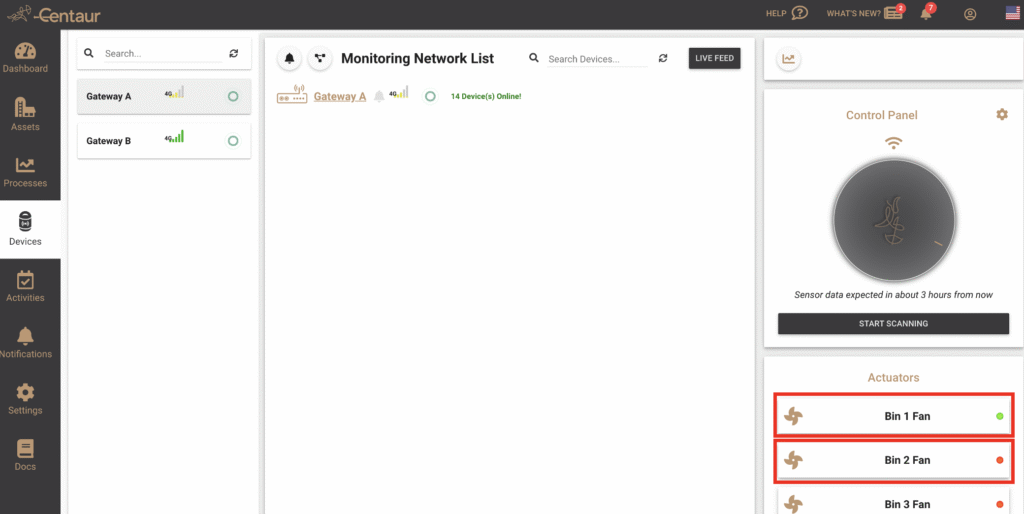
Fans have two possible statuses: red means the fan is off, while green indicates that the system has sent the command to turn it on.
To toggle a fan, simply click the corresponding fan icon. Wait a few seconds and observe the status change from one color to another.
For more information about the differences between the available aeration modes, refer to our FAQ titled “What’s the difference between Automatic, Rules, and Manual aeration modes?”. If you still have questions, feel free to contact us at support@centaur.ag.