How to Change Your Password
If you need to update your password, follow these simple steps to make the change securely.
1. Access Your Profile
-
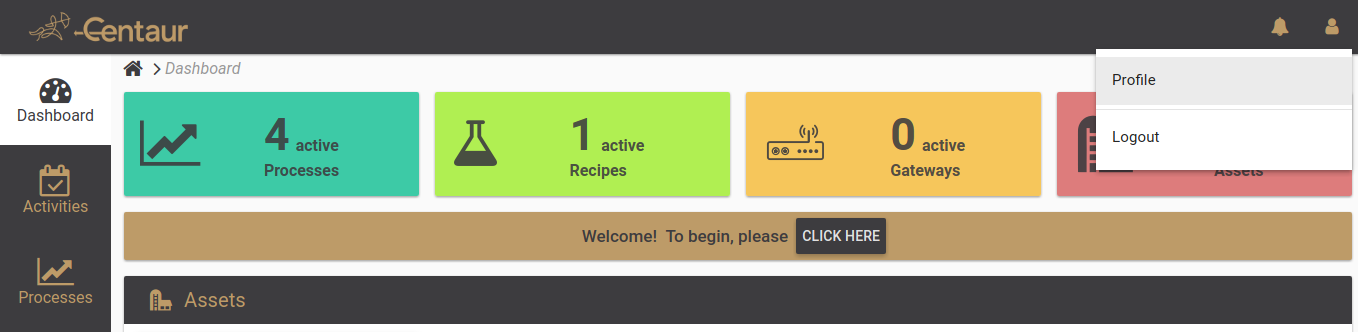
Click on the person icon in the top right corner of the page.
-
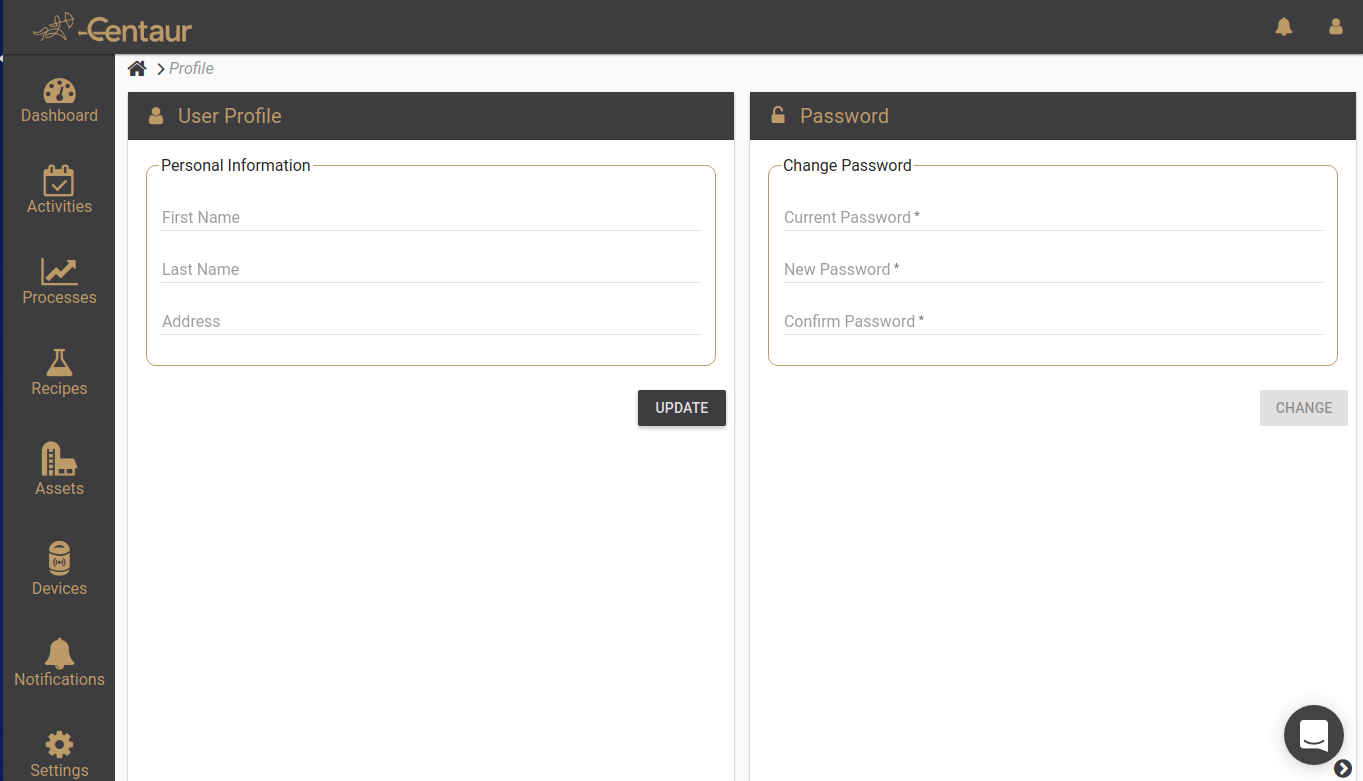
Select Profile from the dropdown menu. This will redirect you to the profile page, as shown below:
2. Update Your Password
-
In the Password section, enter your current password.
-
Below, type your new password and then confirm it by entering the same password again.
-
Click the CHANGE button to save your new password.
Important: Make sure you type the same password in both the New Password and Confirm Password fields. If they don’t match, your password will not be updated.
3. Update Your Profile Information (Optional)
-
If you want to update other personal information, go to the Personal Information section on the left side of the page.
-
After making your changes, click the UPDATE button to save them.