How to set Asset Rules (Notifications)
Preamble
This article explains how to create, review, and modify rules for an asset in the Internet-of-Crops® platform.
1. Accessing Asset Rules
-
Navigate to the Assets section of the Internet-of-Crops® platform.
-
Select the asset for which you want to configure rules.
-
When the asset overview page opens, select the Rules tab.
2. Reviewing Default Rules
The Rules tab displays any default rules associated with the commodity stored in the asset.
-
Default rules may be used as provided or adjusted based on operational requirements.
-
Use the action icons on the right side of each rule to activate, deactivate, edit, or delete it.
3. Adding or Modifying Rules
To create a new rule:
-
Select + Add Rule.
-
A Rule Settings window opens, allowing you to configure Condition or Connectivity-based rules.
3.1 Condition Rules
Condition rules are triggered by measured grain or ambient parameters.
When creating a condition rule:
-
Rule Name: Enter a clear and descriptive name.
-
Condition: Use the drop-down menus to define the trigger (e.g., grain temperature, ambient temperature, moisture content).
-
Notifications and Actions:
-
Enable in-app notifications, email notifications, or both.
-
If applicable, select an actuator and action (such as enabling fans through Aeration Autopilot).
-
-
Save: Select Save to activate the rule.
Example
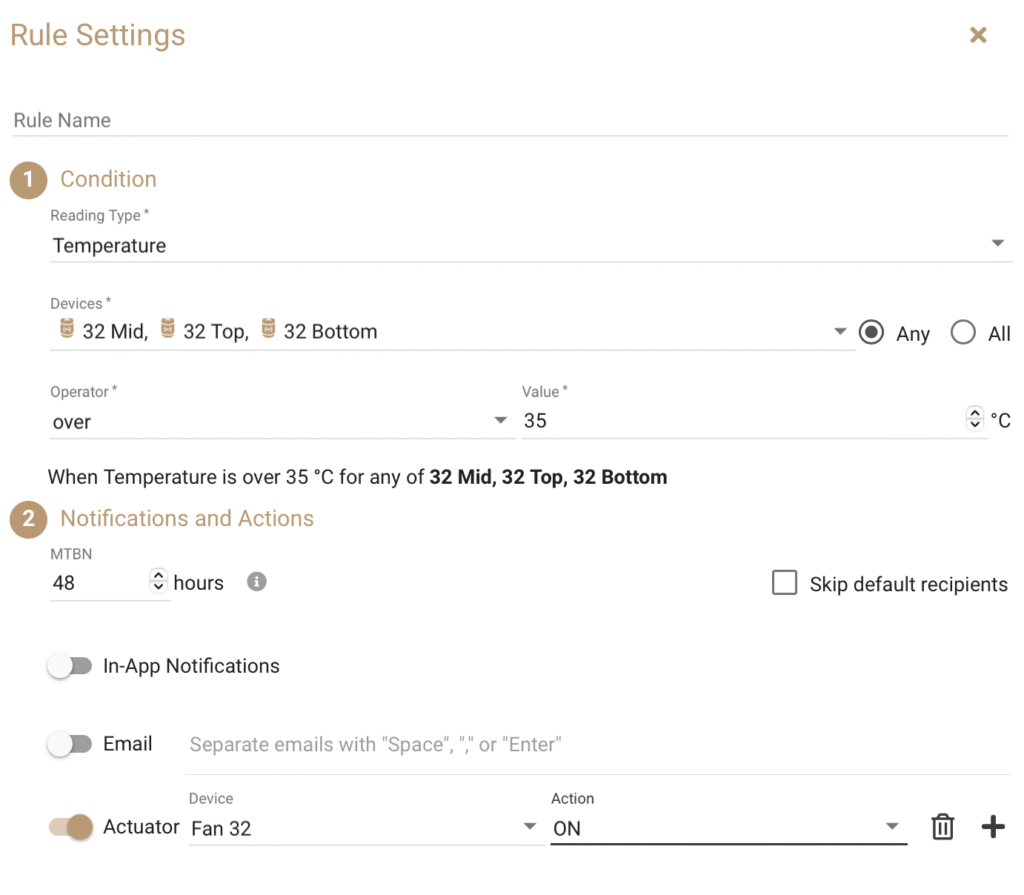
A rule that sends an in-app notification and email alert, and automatically runs aeration fans if grain temperature exceeds 35 °C.
3.2 Connectivity Rules
Connectivity rules monitor the status of Centaur® devices such as sensors and gateways.
When configuring a connectivity rule:
-
Rule Name: Provide a descriptive name.
-
Device Status Condition: Select the device(s) to monitor and specify the status (e.g., Inactive).
-
Maximum Time Before Notification (MTBN): Define how long the device must remain in the selected status before notifications are issued.
-
Notifications and Actions:
-
Enable in-app or email notifications.
-
Optionally configure actuators to respond when device connectivity is lost.
-
-
Save: Select Save to apply the rule.
Example
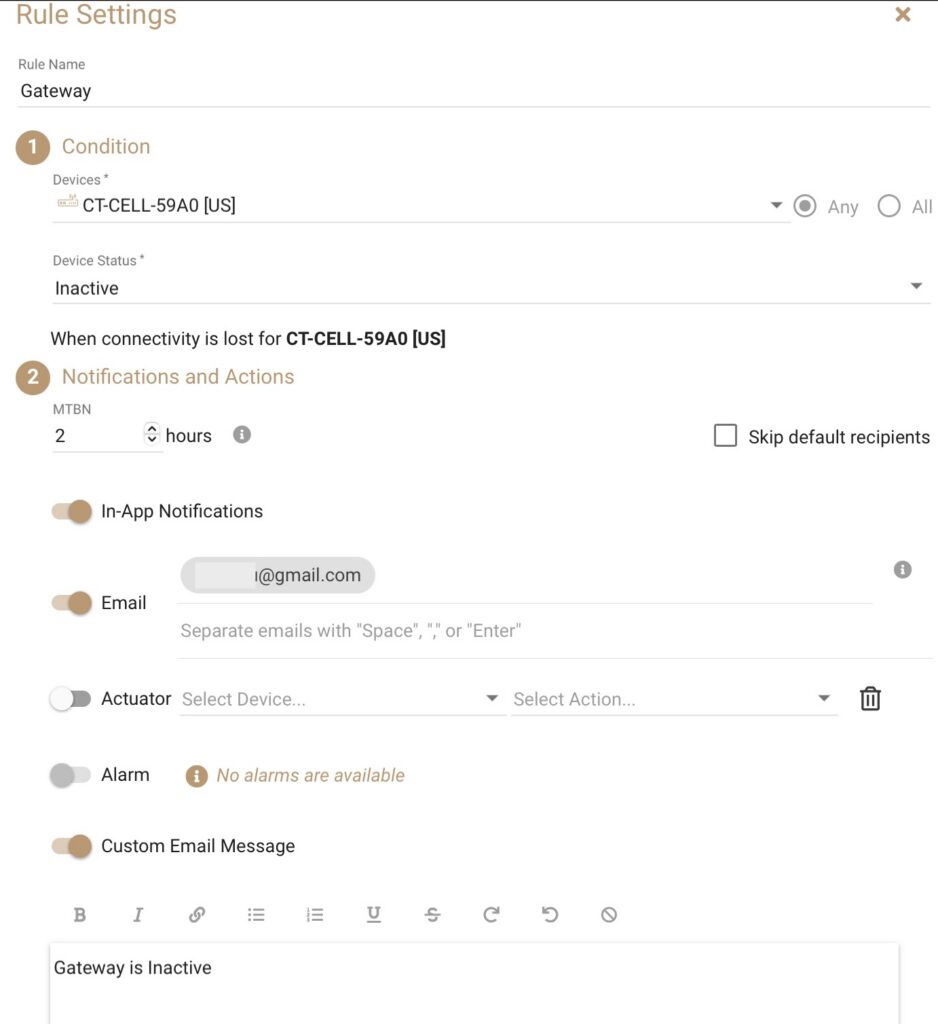
A rule that sends an in-app notification and an email when a gateway becomes inactive for more than two hours, ensuring operators are aware of connectivity interruptions.
4. Additional Notes
-
Rules can be edited at any time from the Rules tab.
-
Ensure email addresses entered in notification settings are valid and monitored.
-
Actuator-based actions depend on the devices available in your deployment.
-
Notifications are issued only after the MTBN period elapses (for connectivity rules).